
TraceOrg works best when you upload the original imaging study in DICOM format. DICOM is the standard format used by hospitals and imaging centers for CT, MRI, ultrasound, X-ray, and other radiology studies.
You can upload either the original ZIP file or the full unzipped folder, as long as the folder structure is kept unchanged.
Do not upload screenshots, JPEG files, PNG files, photos of a screen, or only the written report.
What TraceOrg Needs
Upload the whole imaging package, not selected individual images. The package may come from MyChart or Epic, a hospital imaging portal, a PACS viewer, a CD/DVD, or a direct records request.
Upload the ZIP or the Unzipped Folder
Both methods are acceptable:
Best option: upload the ZIP file directly if the portal gives you one.
Alternative: upload the entire unzipped folder if you already opened the ZIP.
For a CD/DVD: copy the full disc contents into one folder, then upload that folder or zip it and upload the ZIP.
Download From MyChart or Epic
Some hospitals allow patients to download radiology images through MyChart. The exact wording may vary by hospital.
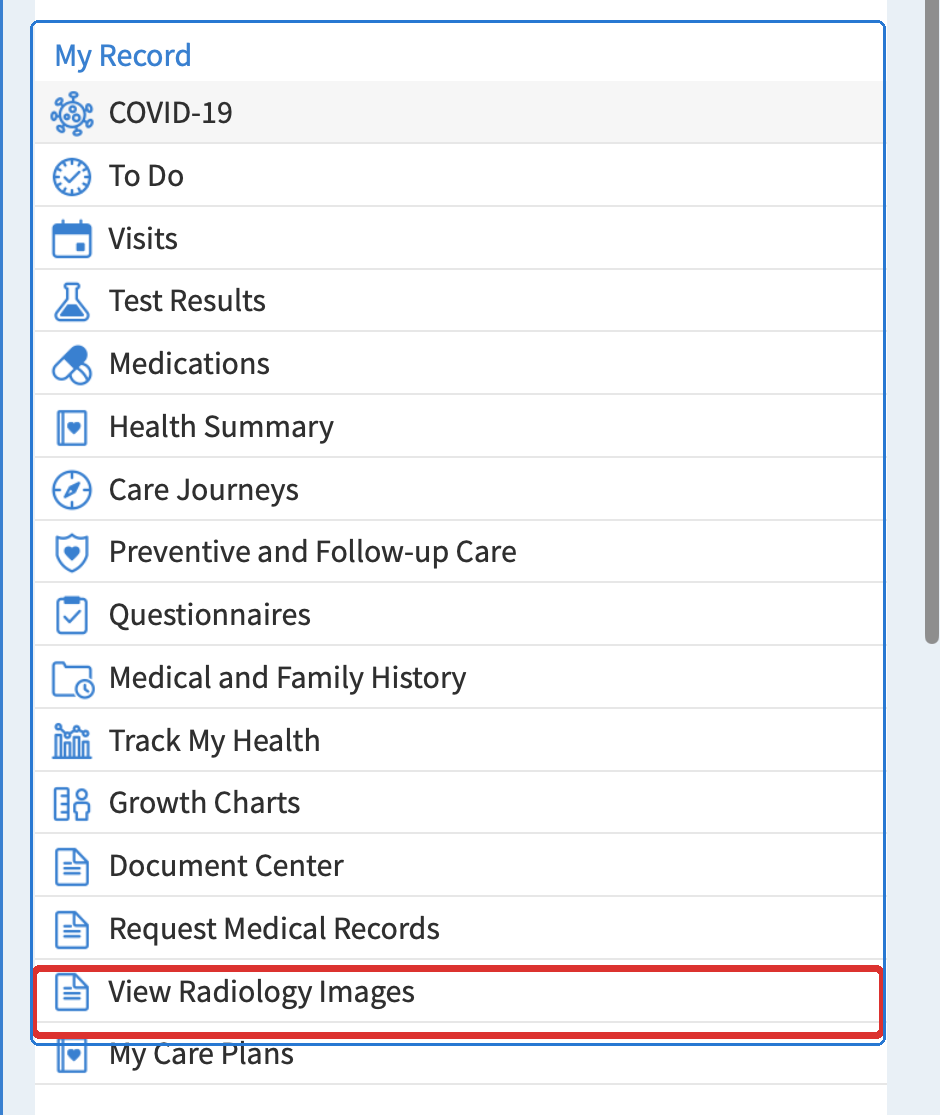
In MyChart, the image download path may appear under My Record, then View Radiology Images.
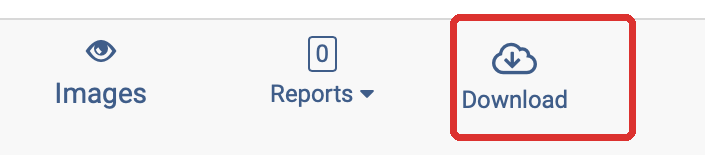
After choosing View Radiology Images, MyChart may open a study list with a Download button.
Log in to MyChart.
Open the menu.
Under My Record, choose View Radiology Images.
MyChart may open a separate imaging viewer or study list.
Find the correct CT, MRI, ultrasound, or X-ray study.
Click Download.
Upload the ZIP file or full unzipped folder to TraceOrg.
Download From Epic, Vue PACS, or Another Hospital Imaging Portal
If you have authorized access through Epic, Vue PACS, Vue Motion, or another hospital imaging portal, download or export the full DICOM imaging package. Follow your institution’s data access and authorization policies.
Open Epic or the hospital imaging portal.
Go to the imaging or radiology section.
Open the relevant study.
Launch Vue PACS, Vue Motion, or the linked imaging viewer if needed.
Choose Download, Export, Share, or the three-dot menu.
Save the full study in DICOM format if that option is available.
Upload the ZIP file or full exported folder to TraceOrg.
Download options depend on hospital settings and user permissions. If you can view images but do not see a download or export option, contact radiology IT, the PACS administrator, or medical records.
Use a CD or DVD
Insert the disc into a computer.
Copy the full contents of the disc into one folder.
Upload that folder to TraceOrg, or zip the folder and upload the ZIP.
Do not upload only the viewer application from the disc.
What a Correct Package May Contain
A downloaded ZIP, unzipped folder, or CD/DVD may contain files like these:
DICOMDIR
README.txt
dicom/
  SER00001/
    IMG00001.dcm
    IMG00002.dcm
    IMG00003.dcm
reports/
viewer.app
viewer.exe
This is normal. The most important files are usually the .dcm files inside the dicom folder. DICOMDIR helps organize the study. The viewer app is only software for looking at the images; do not upload the viewer alone.
If Download Is Not Available
Contact the hospital radiology department or records office and ask for: “the full imaging study in DICOM format.” A ZIP download link is preferred, but a CD/DVD is also acceptable.
For U.S. Users: You Can Request Copies of Your Images
In the United States, HHS explains that individuals generally have the right to access copies of health information in their records, including X-rays or other images. If portal download is not available, you can contact the hospital radiology department or records office and ask for the full imaging study in DICOM format.
Sources: HHS: Get it. Check it. Use it. and HHS FAQ about copies of X-rays or other images.
What Not to Upload
Screenshots
JPEG or PNG images
Photos of a screen
A PDF report only
The reports folder alone
viewer.app or viewer.exe alone
A single image or single slice
Key images only
Simple Rule
If you are unsure, upload the entire ZIP file or the entire unzipped folder. Keep all files and folders together. Do not pick individual files from inside the package.
What TraceOrg Can Generate From a Correct Upload
After TraceOrg receives a full imaging study, it can generate measurement summaries and reviewable segmentation snapshots. The examples below show the type of output a correct upload can support.
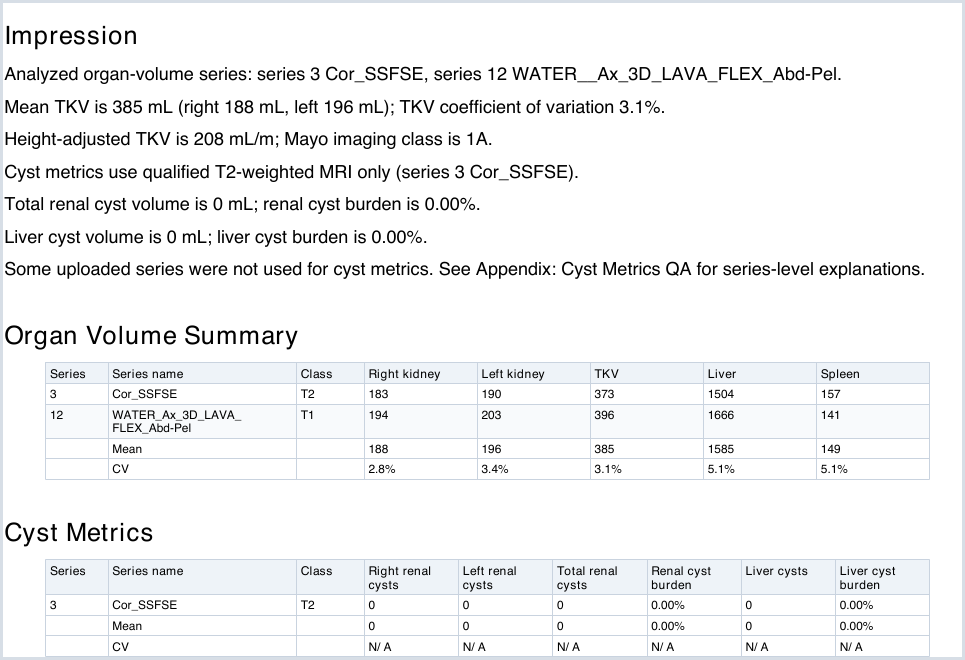
Example report generated after TraceOrg receives a full imaging study.
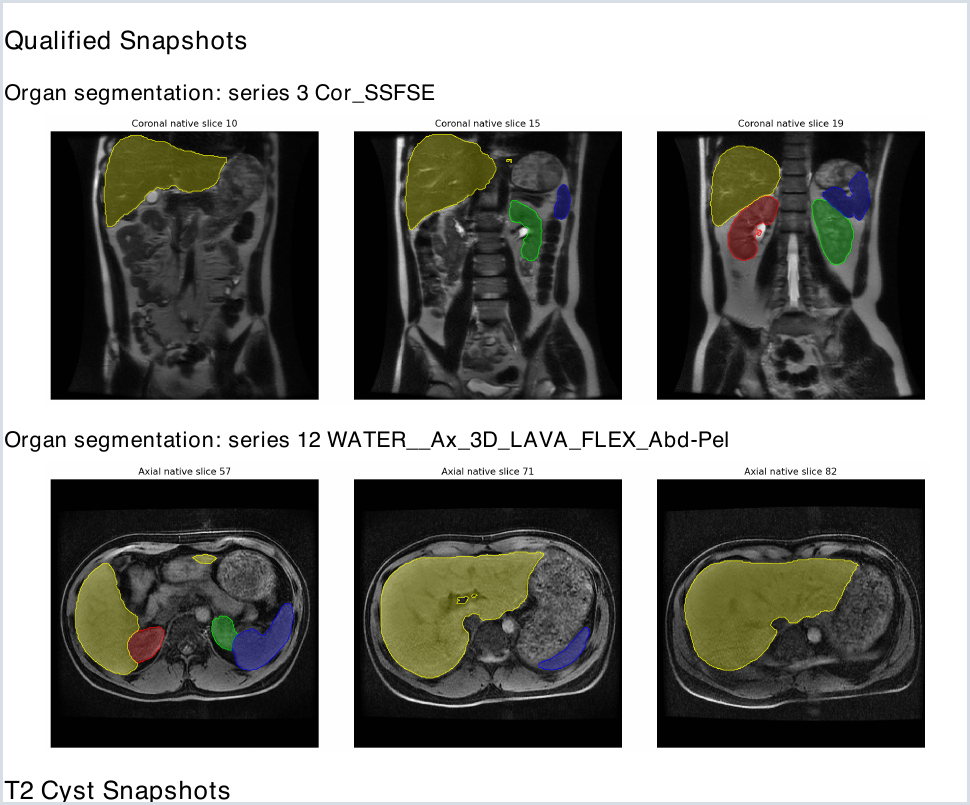
Example segmentation snapshots generated from the original imaging series.